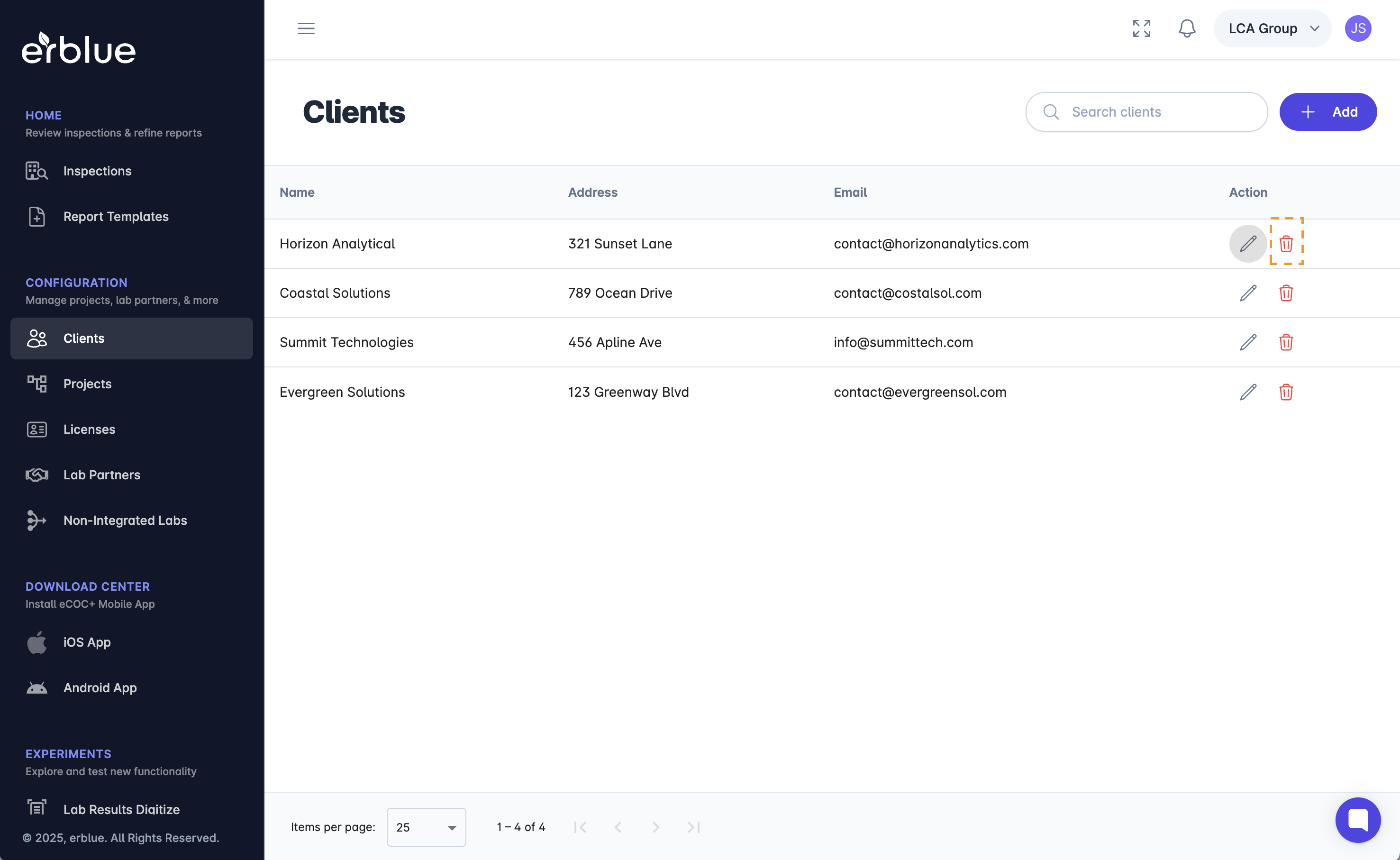
Through the erblue portal you have the ability to add, edit, and remove clients that you work with. Adding clients makes them available in the eCOC+ Mobile App.
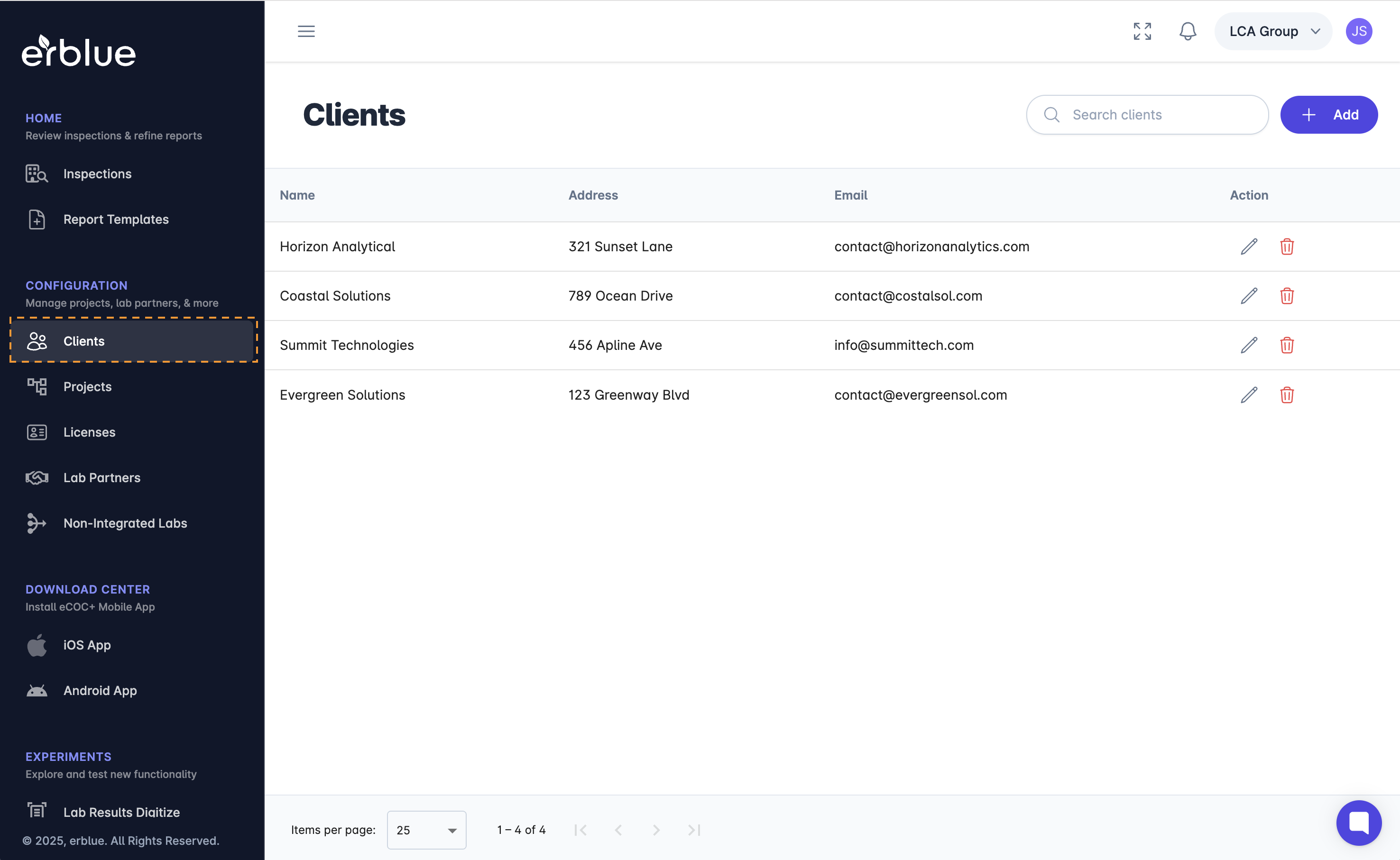
In the main navigation you will see a Manage section. Click the Clients item in this listing. This will navigate you to the Clients listing screen.
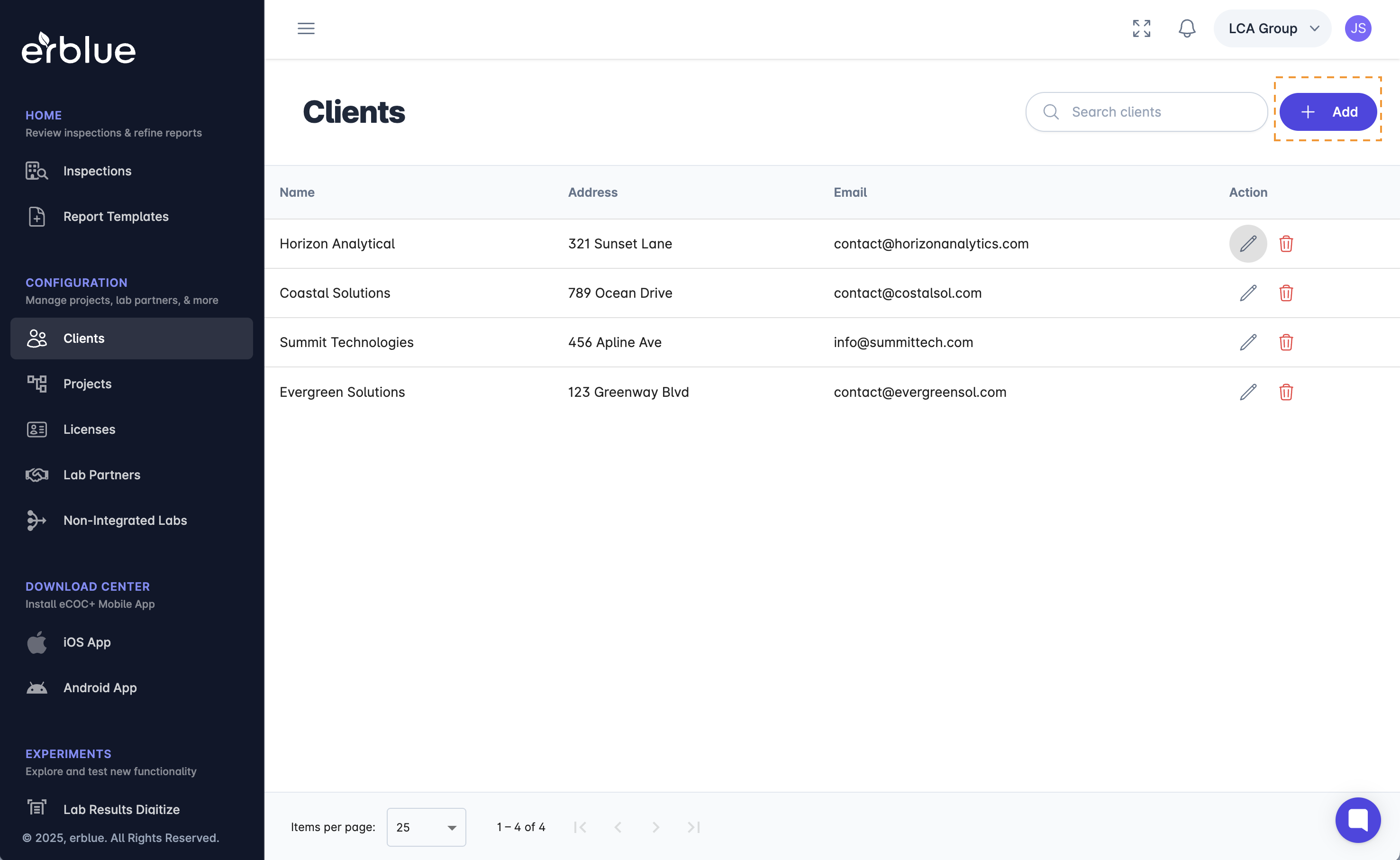
To add a client click the Add button in the upper right corner of the screen (see above screenshot). This will bring up a modal window where you can enter client information. Simply, add the information and click the Save button.
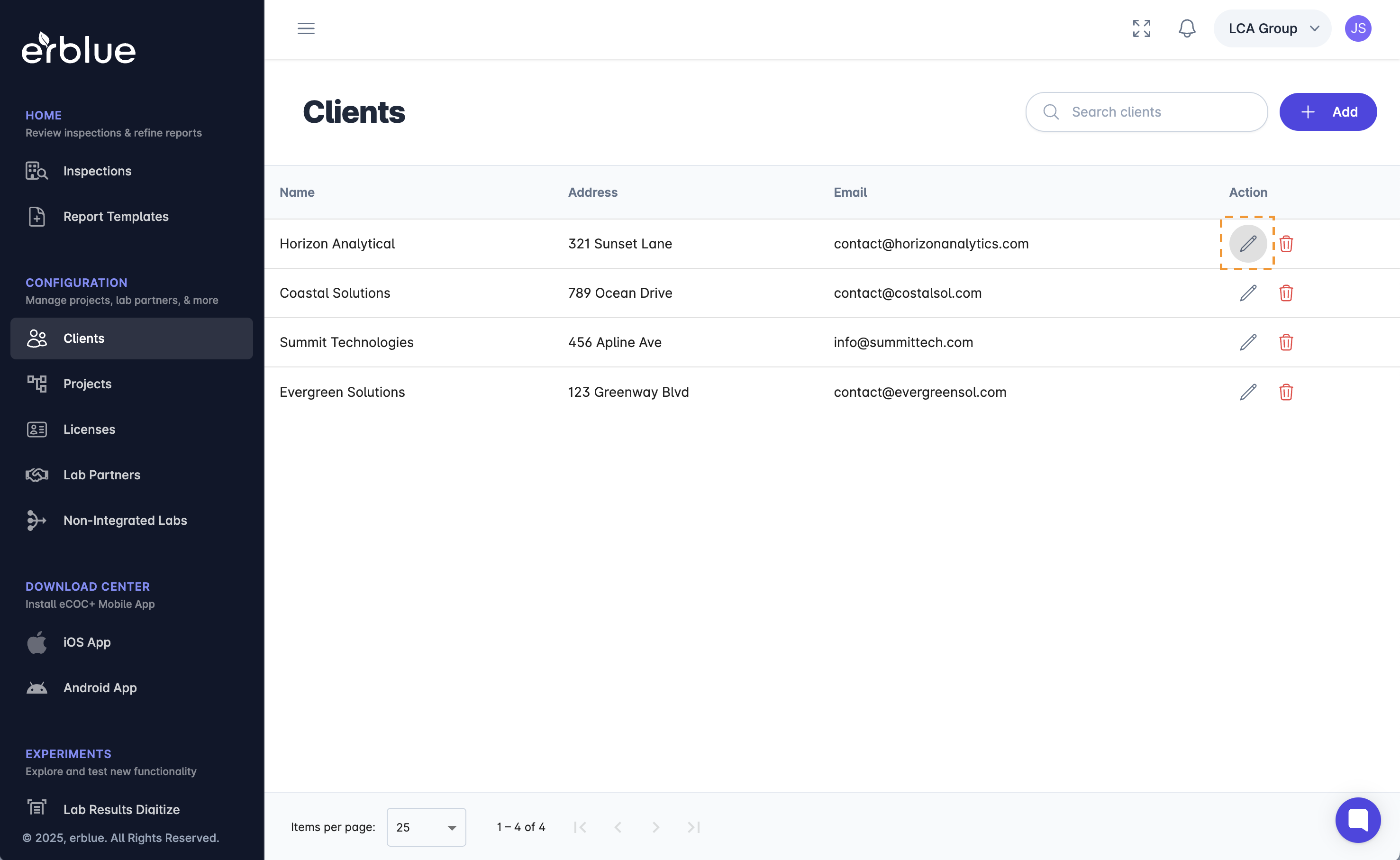
On the Clients listing screen you will see an Action header in the listing table. In the Action column are two icons, a pencil (edit) and a trash can (remove). If you click the pencil icon a screen will pop up with the Client information. Simply edit the information and click Save.
In the Action column, clicking on the trash can icon will prompt you to permanently remove a Client record.