When you click on an inspection record, you are navigated to the Inspection Detail page. The Inspection Detail page has it's own navigation that you can use to see important information about an inspection.
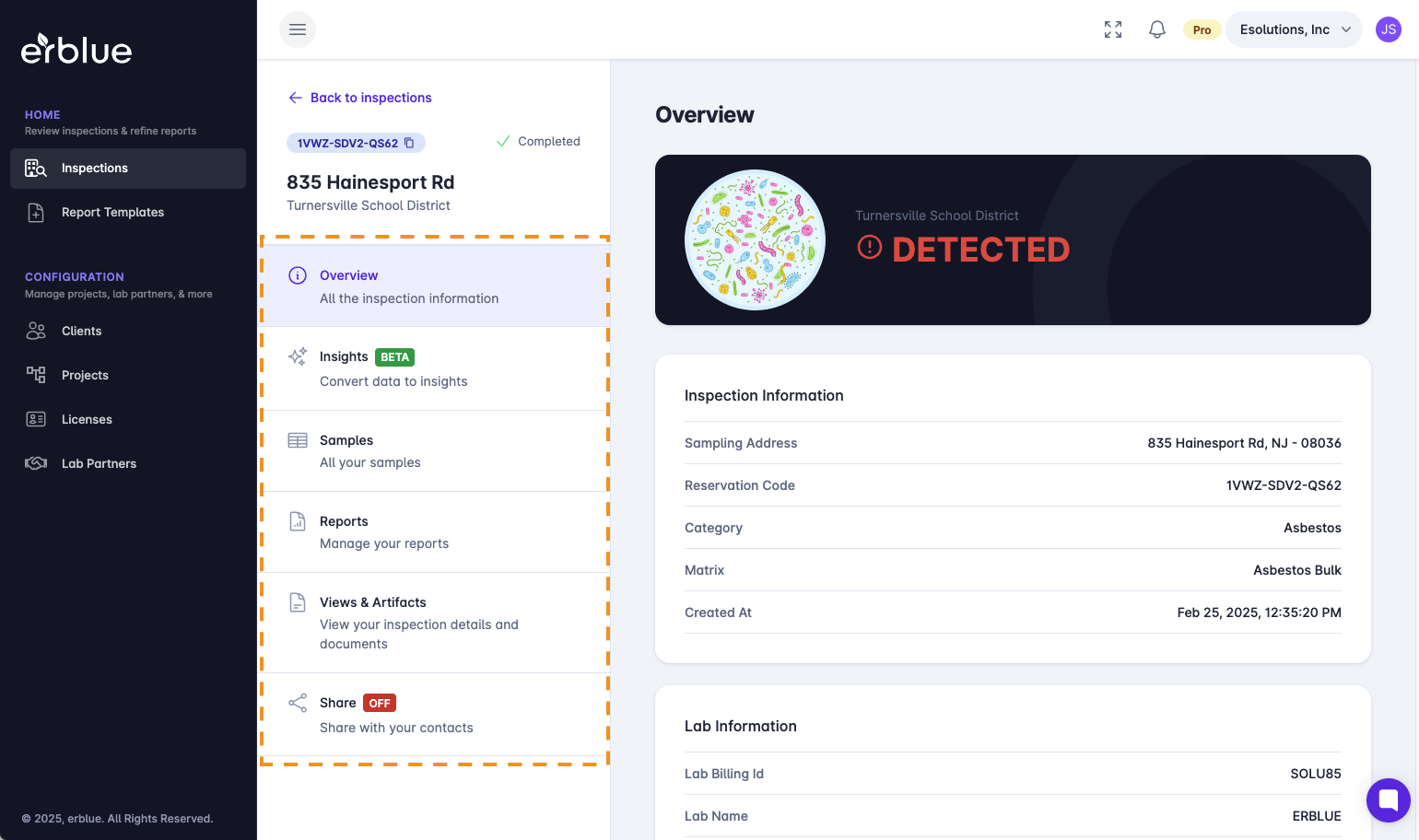
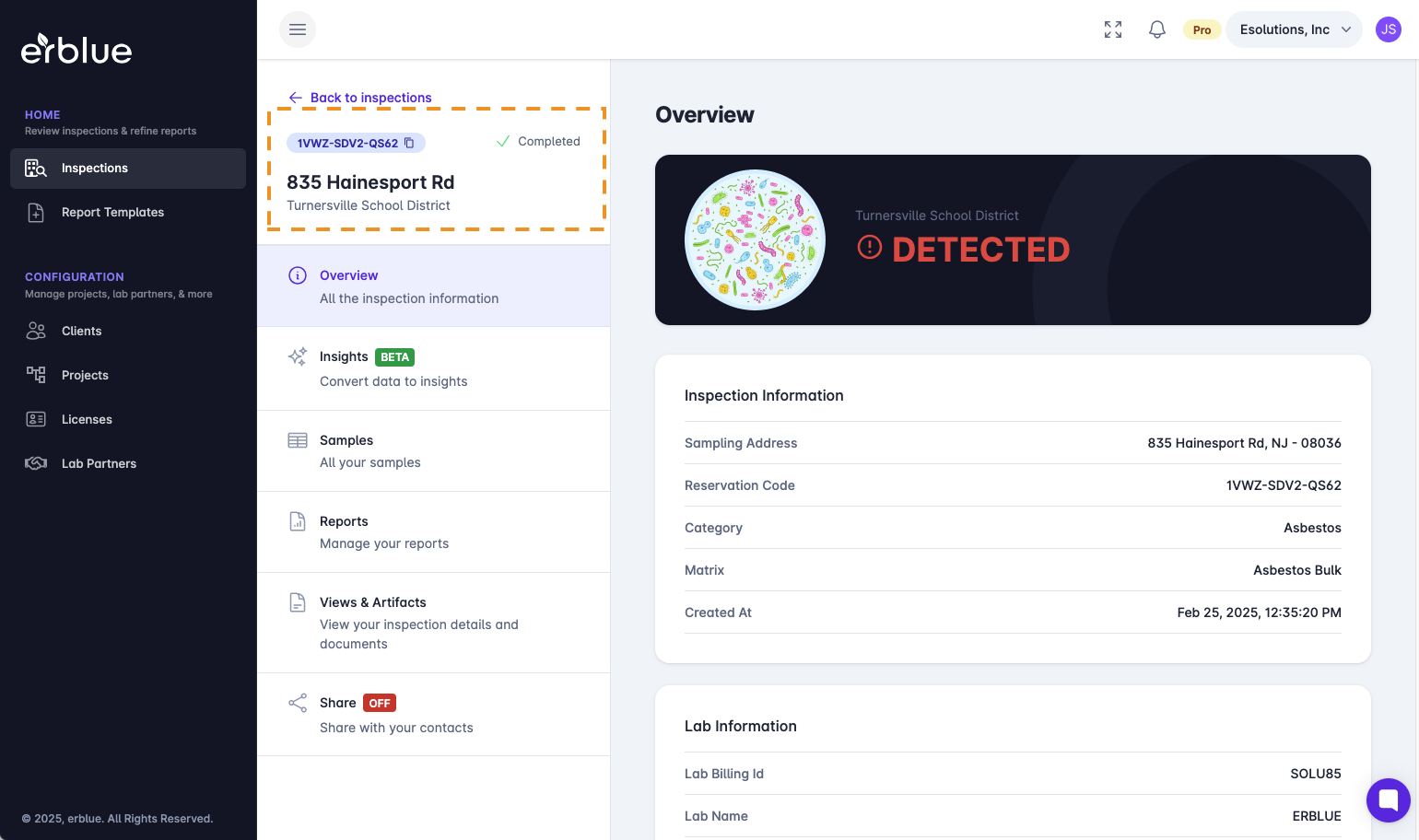
The Overview lists basic inspection information. In the upper left hand corner of the screen you will see the Reservation Code, the Address of the inspection, and the status.
In the heading area of the Overview screen you will see the Detection Status of the inspection.
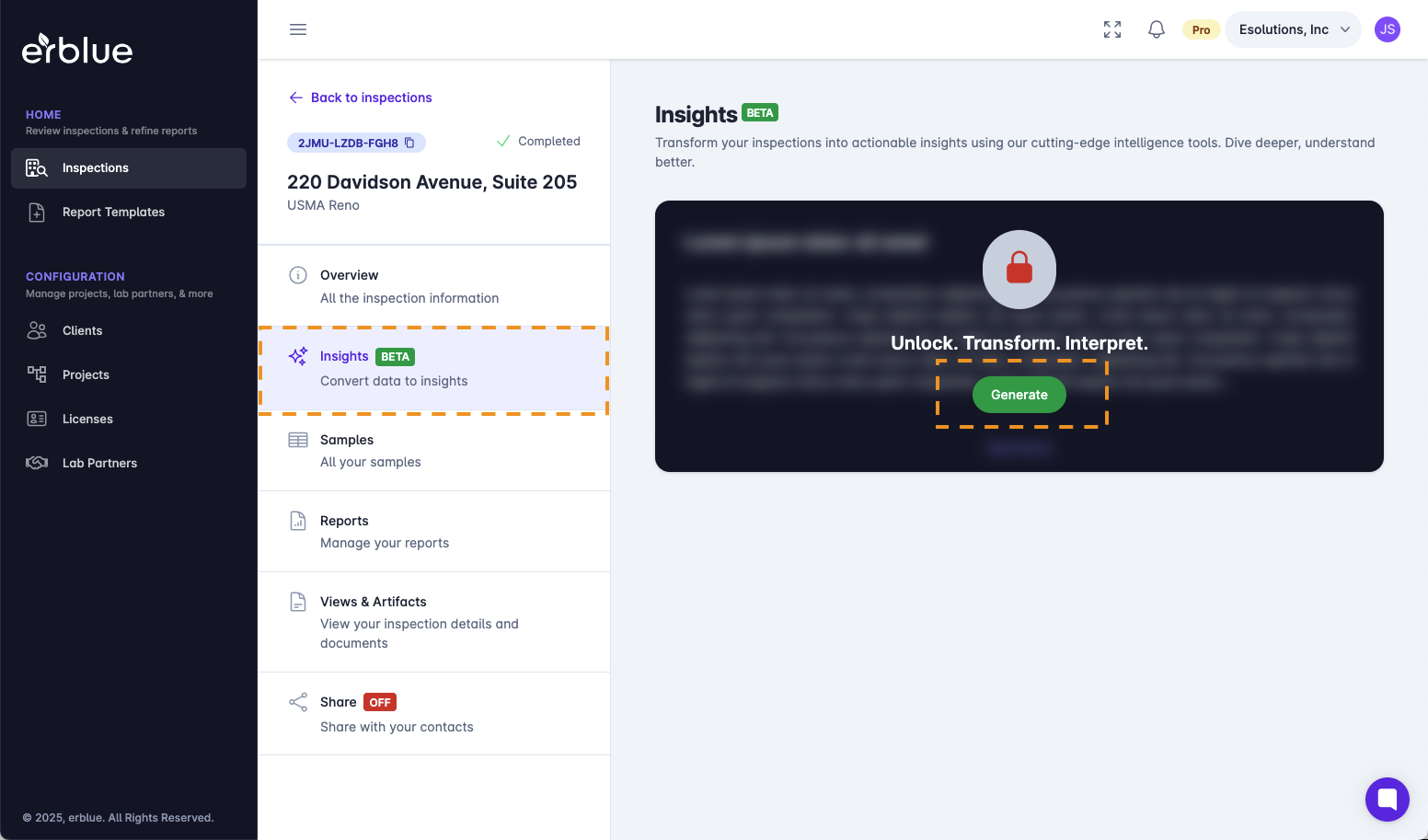
Clicking on the Insights sub-navigation menu item will bring you to the Insights section of the Inspection Detail page. You will see a green "Generate" button. You can generate AI insights of the order and lab results by clicking this button.
The Summary of Finding is AI generated. It gives you a high level view summary of the inspection and lab results.
Our AI model will generate a recommendation for the inspection location based on EPA and industry best practices.
Our AI model will generate any technical or regulator information that you should be aware of.
Clicking on the Samples sub-navigation menu item will bring you to a section listing all of the inspection samples. On this screen, you will get a glance at the samples and the lab results for each sample.
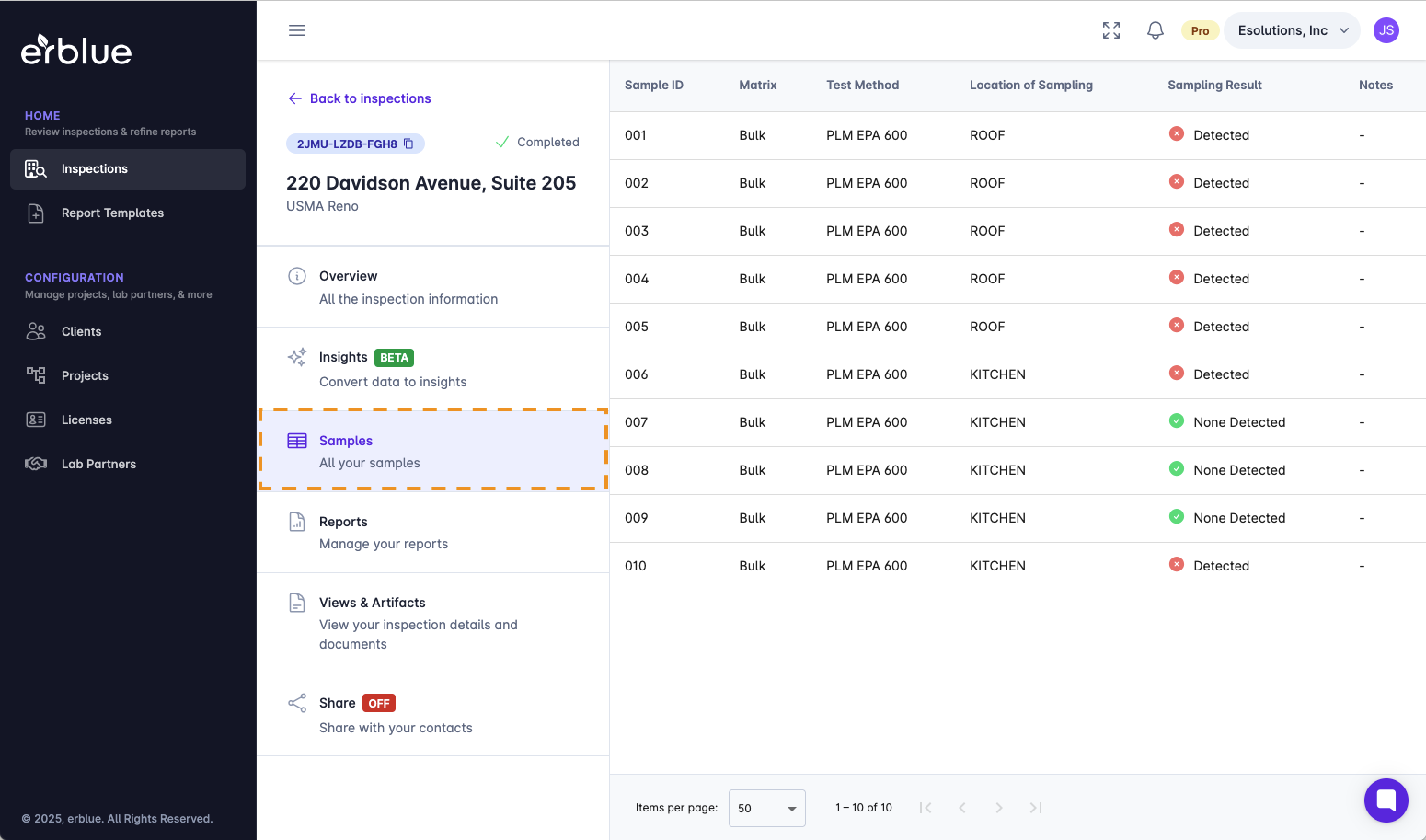
You can see detailed information about the sample by clicking on it.
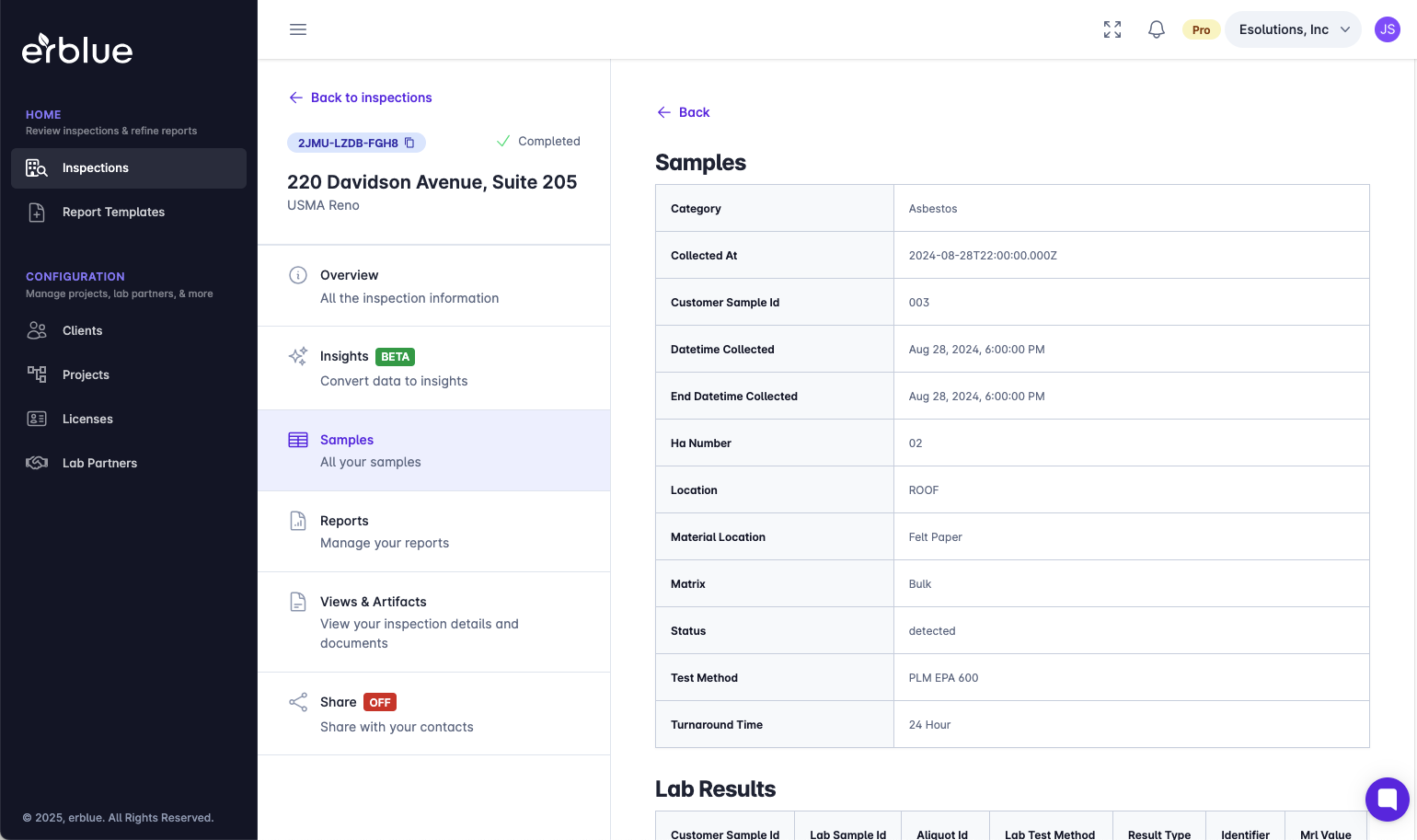
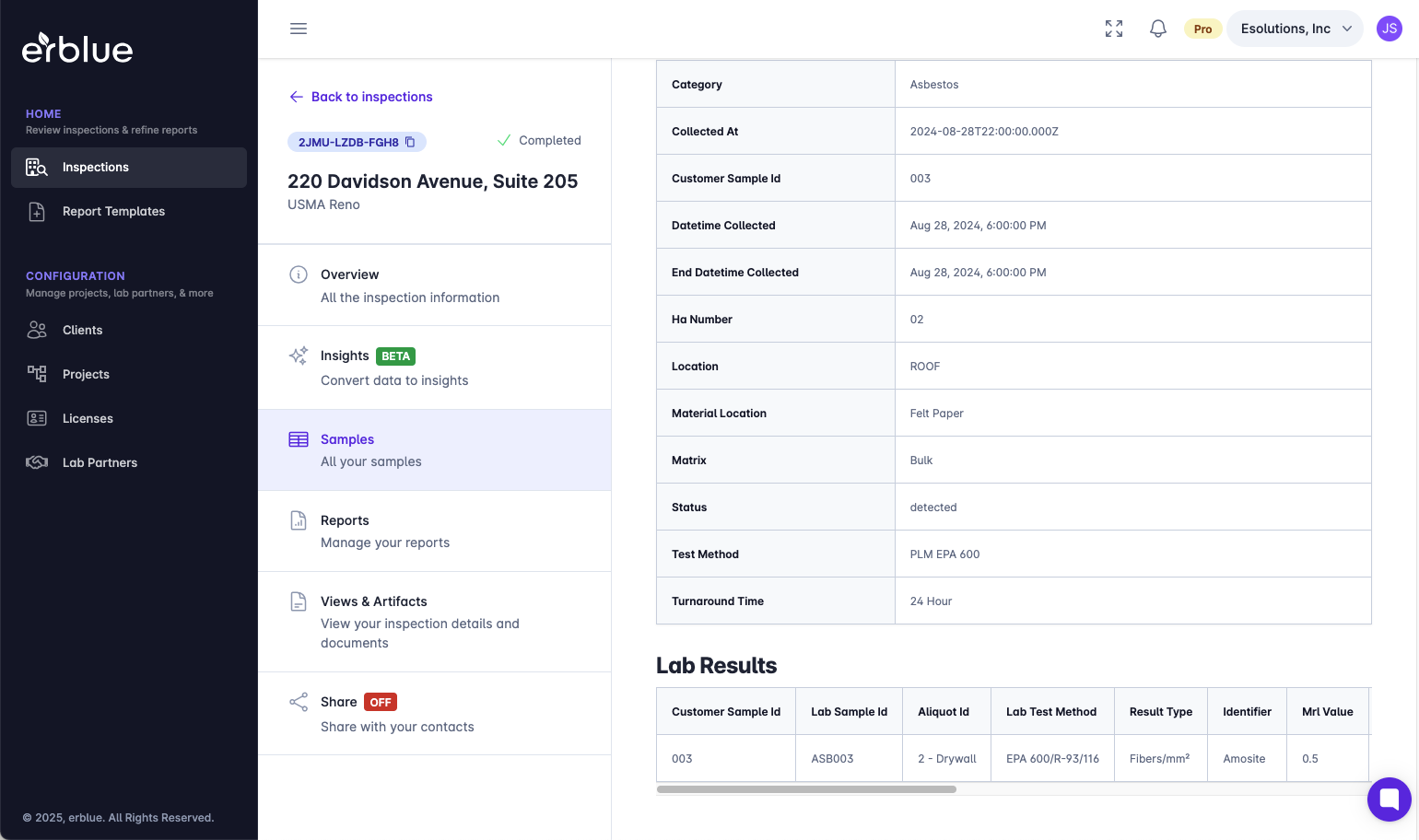
Scrolling down the screen will show all of the lab result details.
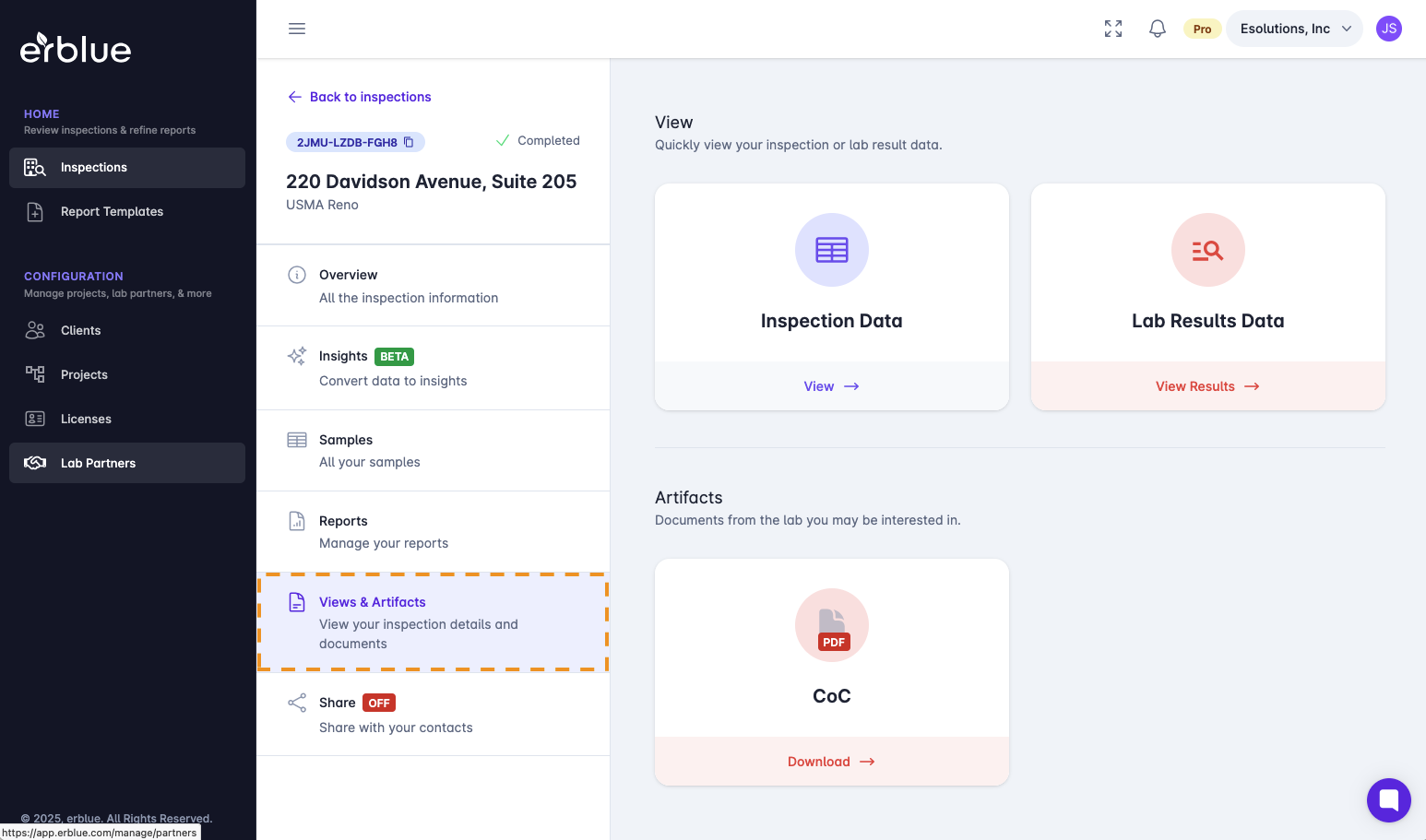
Views and artifacts allow you to view your order data and lab results.
/
In addition, scrolling down the page reveals documents that are provided by the lab partner. You may see the lab reports, various excel downloads, and a lab partner report kit.
You should know!

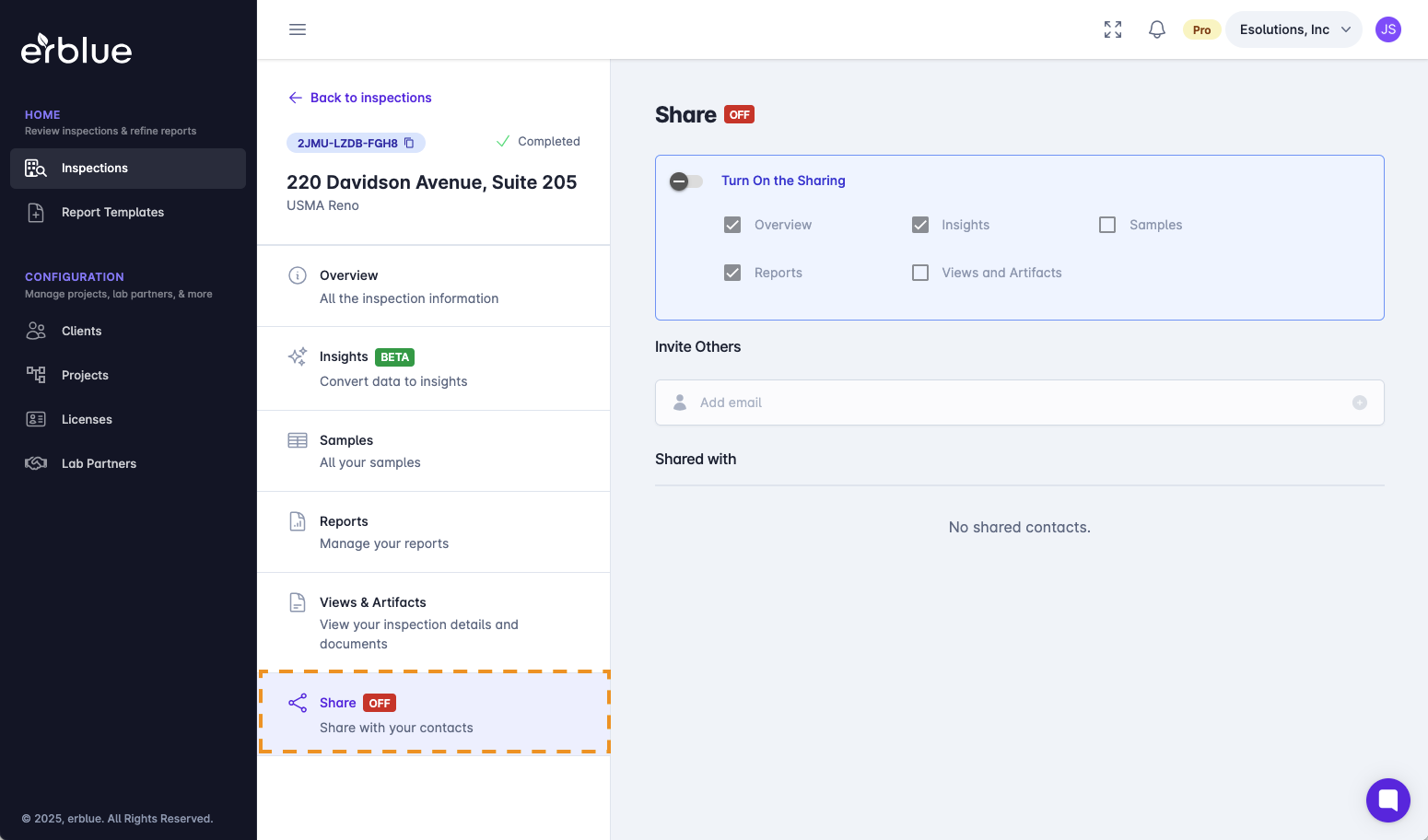
You can easily share your inspection and lab results with third parties. Just go to the "Share" section in the navigation menu. Turn on the sharing toggle and choose which inspection details to share. After selecting, enter the email address(es) of the recipient(s) and click the plus icon. They will receive a link via email to access the shared information.