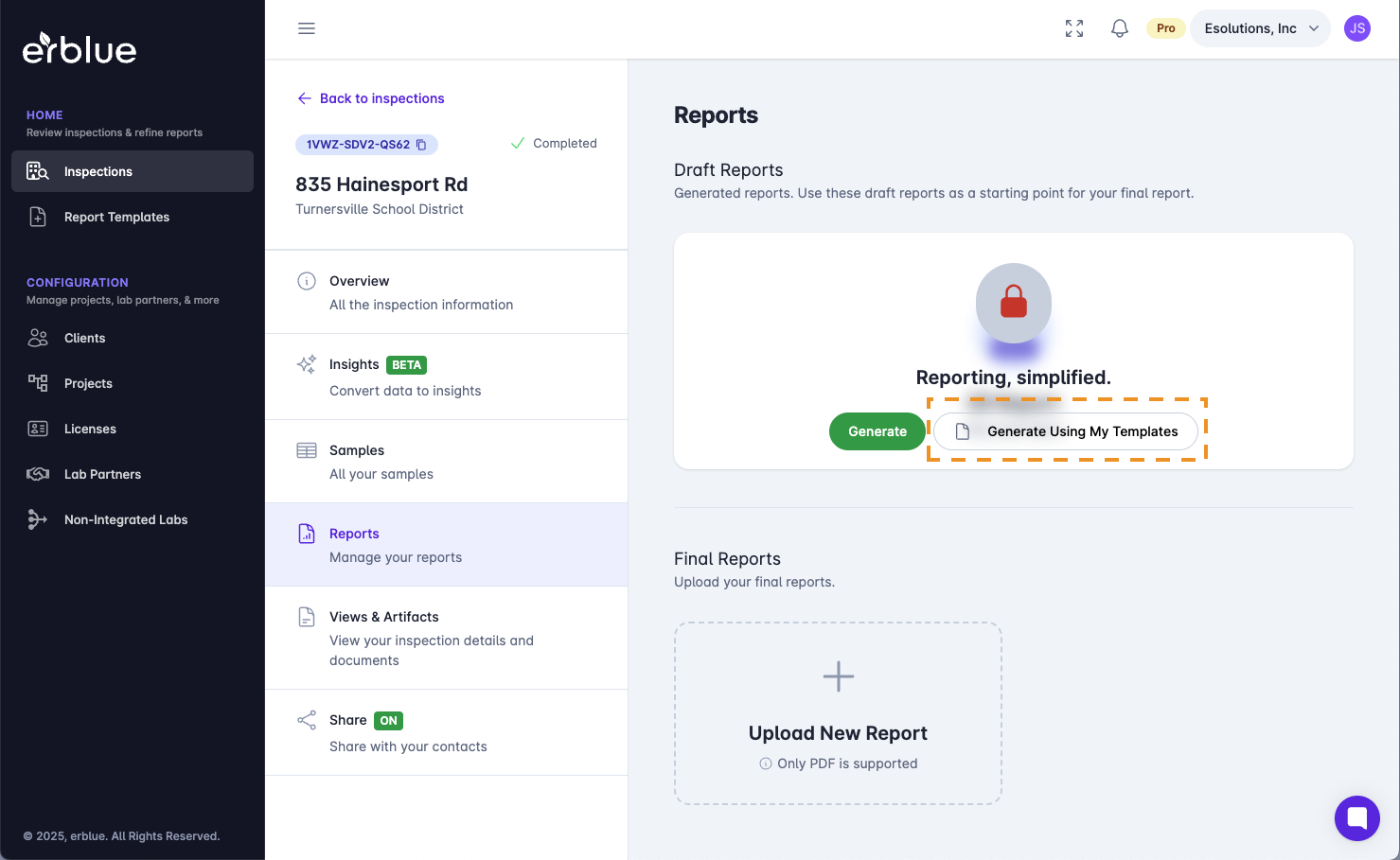
From the inspection detail screen select Reports in the sub navigation menu and then click the Generate Using My Templates button.
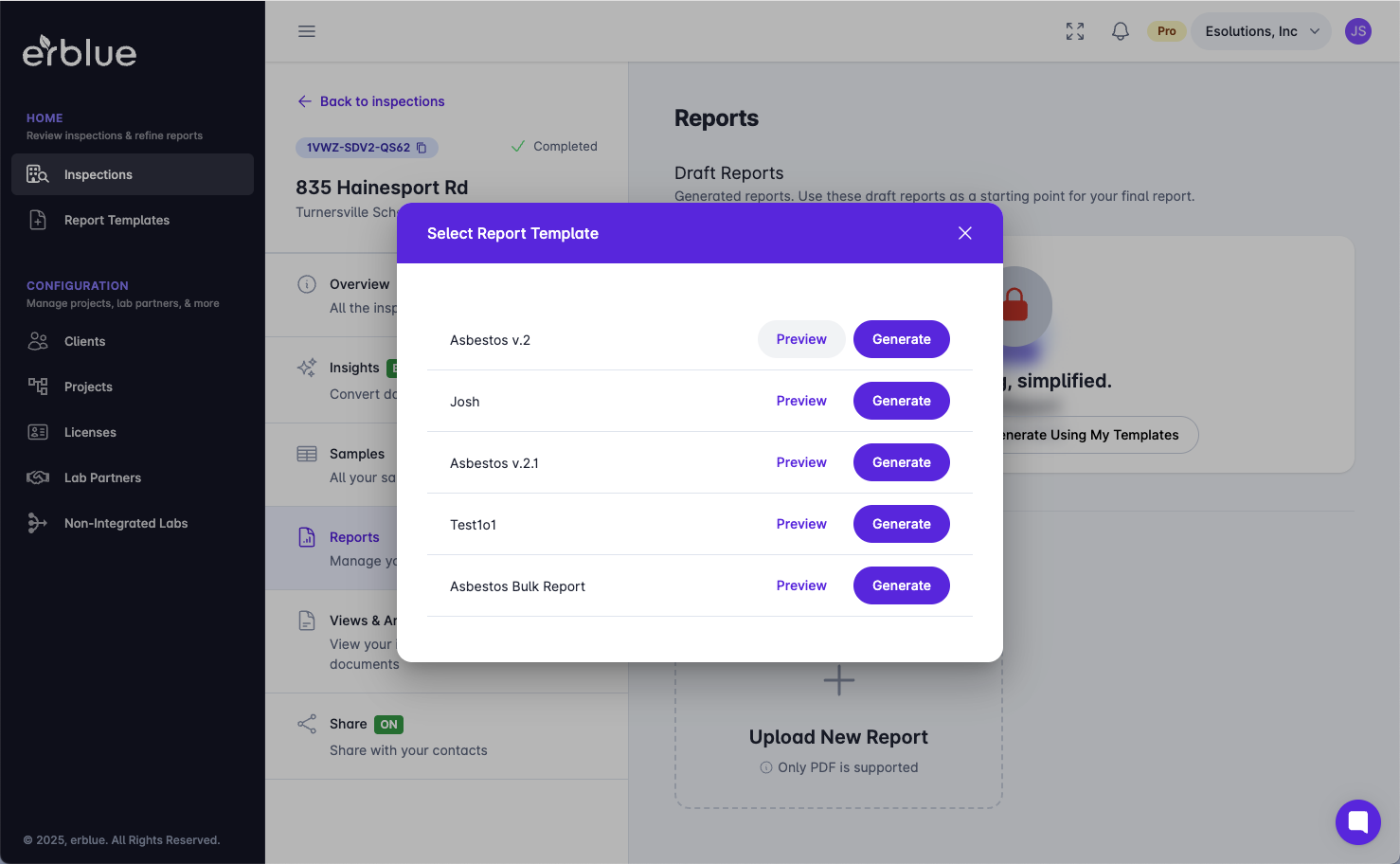
A modal window will open allowing you to Preview or Generate a report based on pre-configured templates.
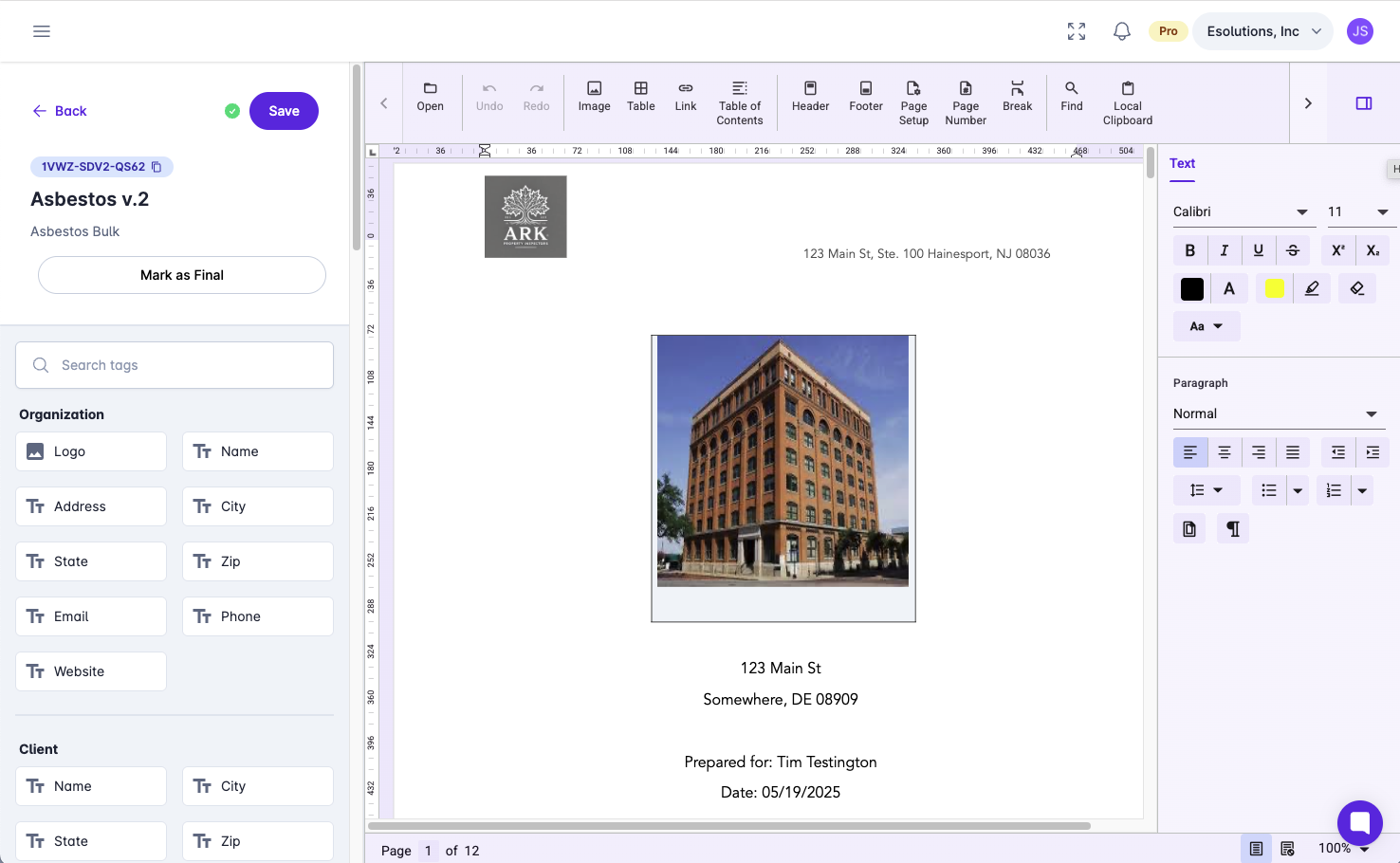
If you preview a report from a template, a generated report will open in the report designer.
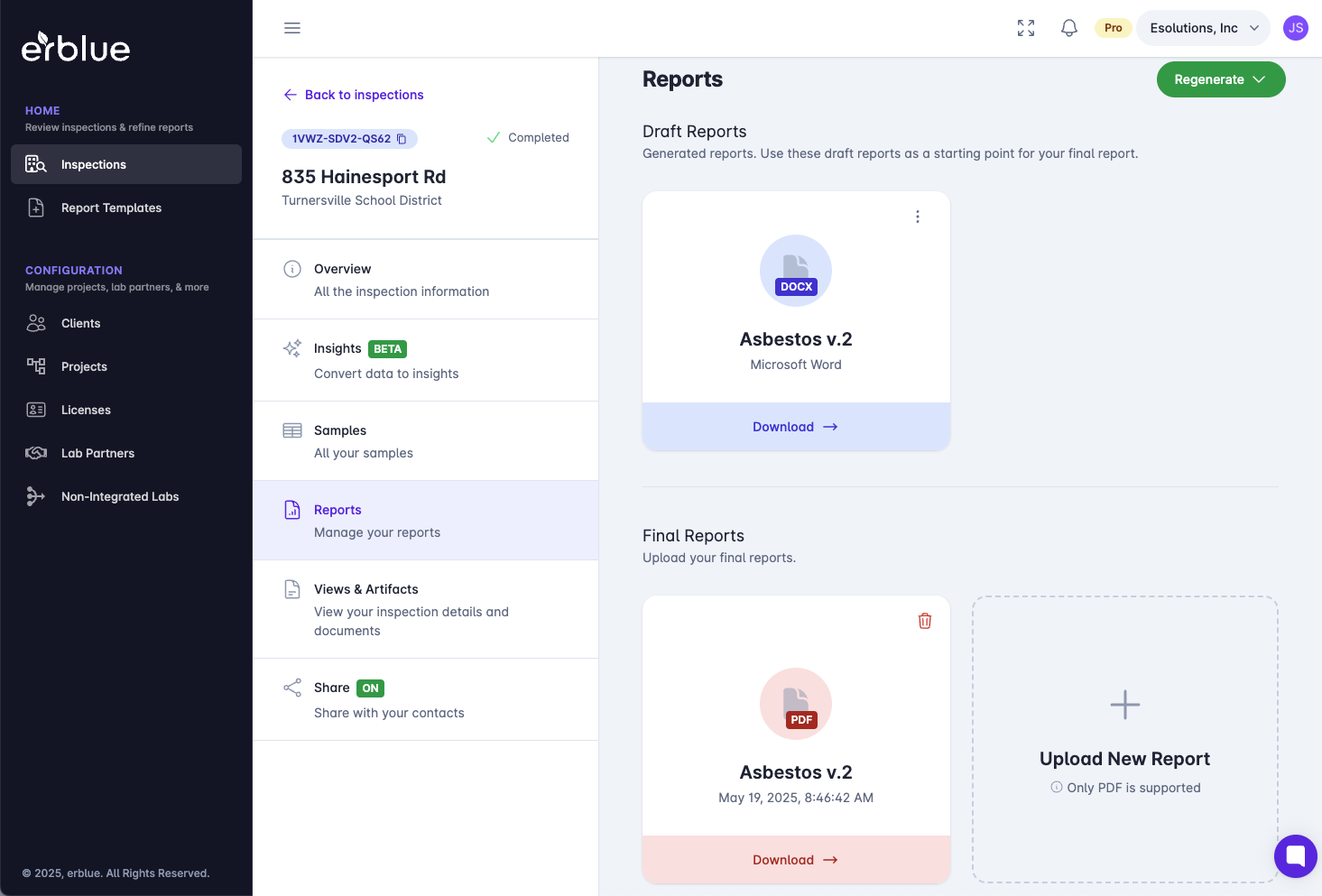
If you generate a report from a template, a generated report will be saved to Draft Reports. This is a starting point for a final report. You should open the report, make any necessary adjustments and save it to your computer.
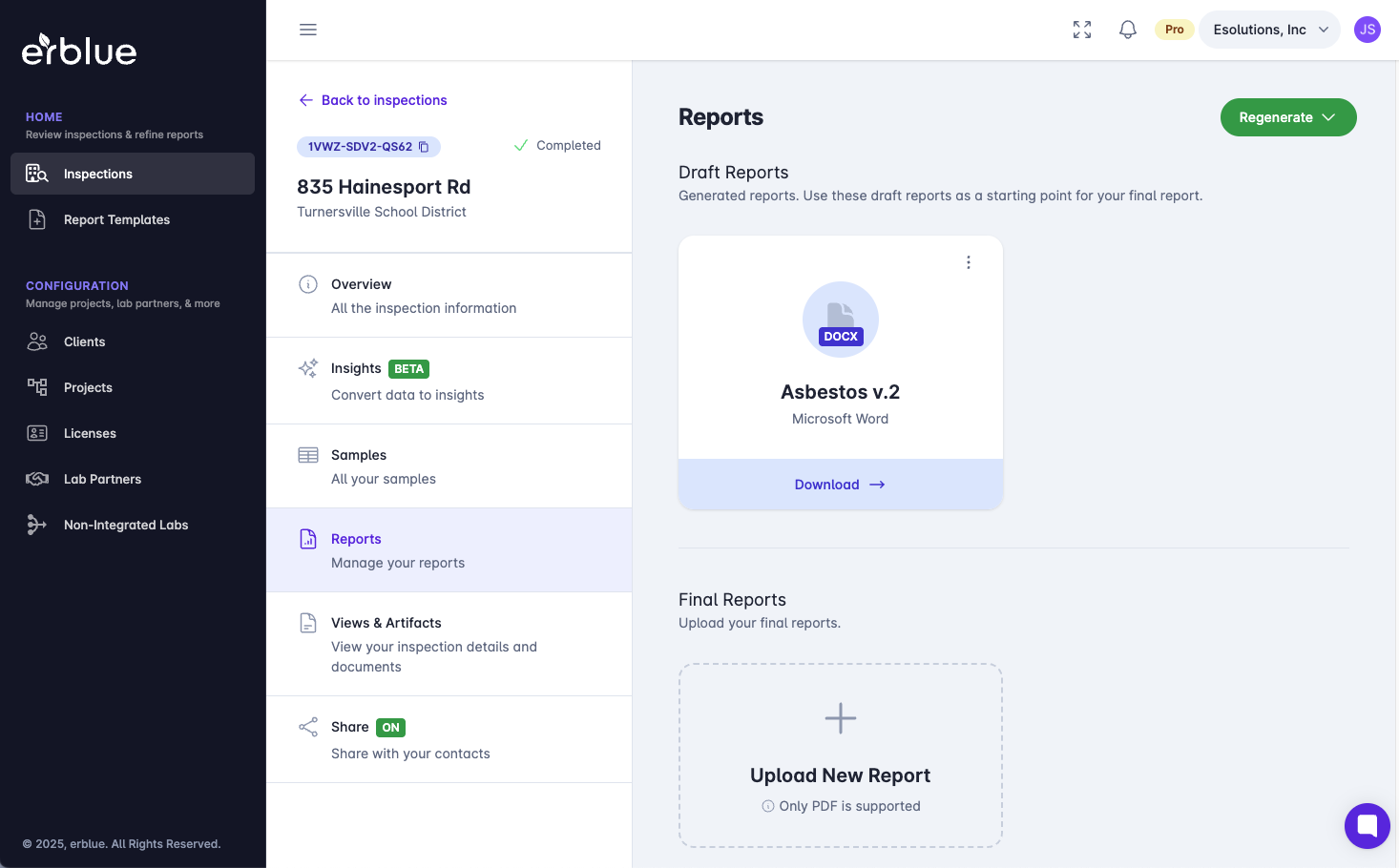
Once you are satisfied with your report, save it as a PDF on your computer and then upload it to the Final Reports Section. Or if the report does not require any adjustments you can mark it as a Final Report using the contextual menu on the suggested report card. The contextual menu can be open by clicking on the three dots in the upper right corner of the card.
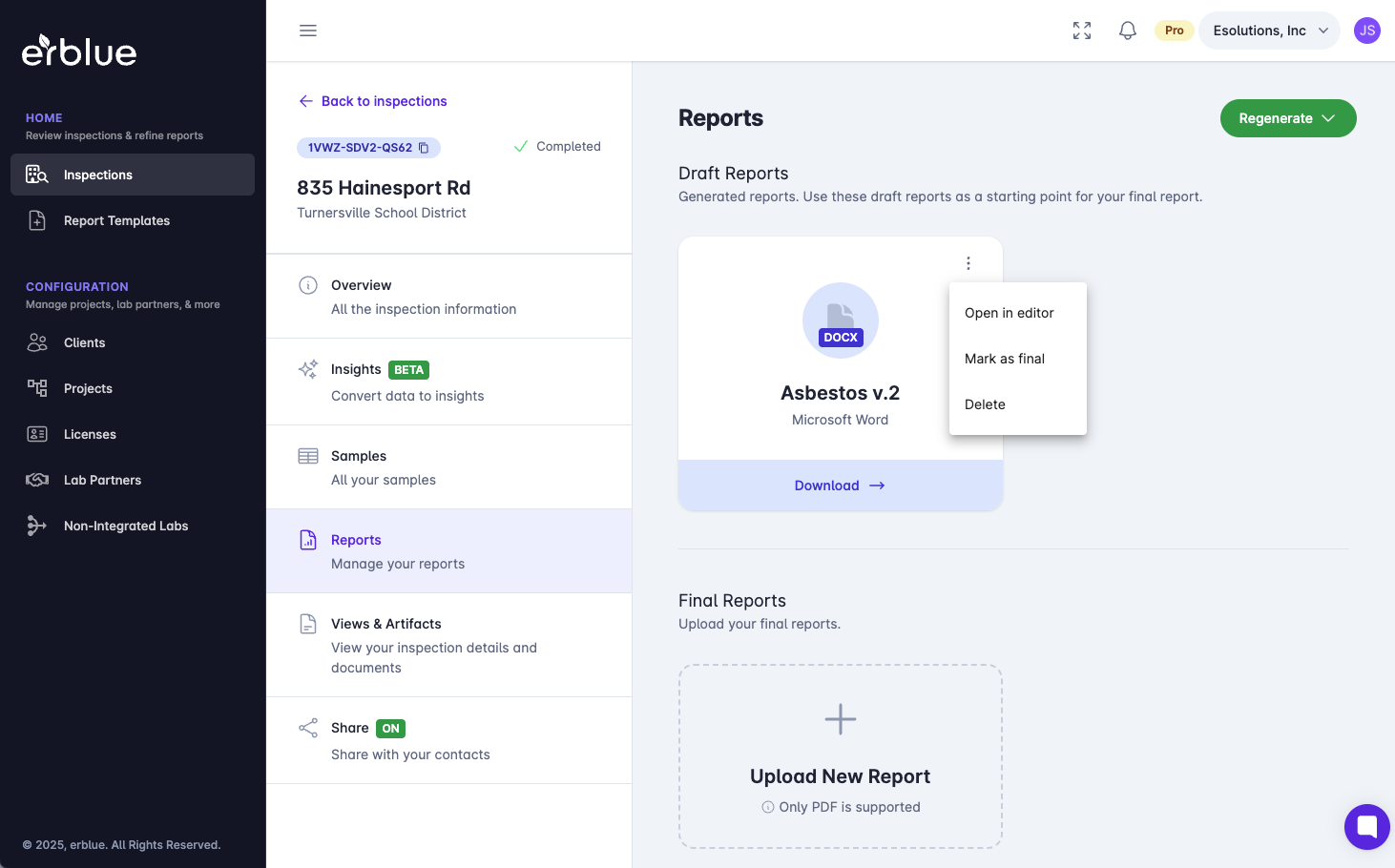
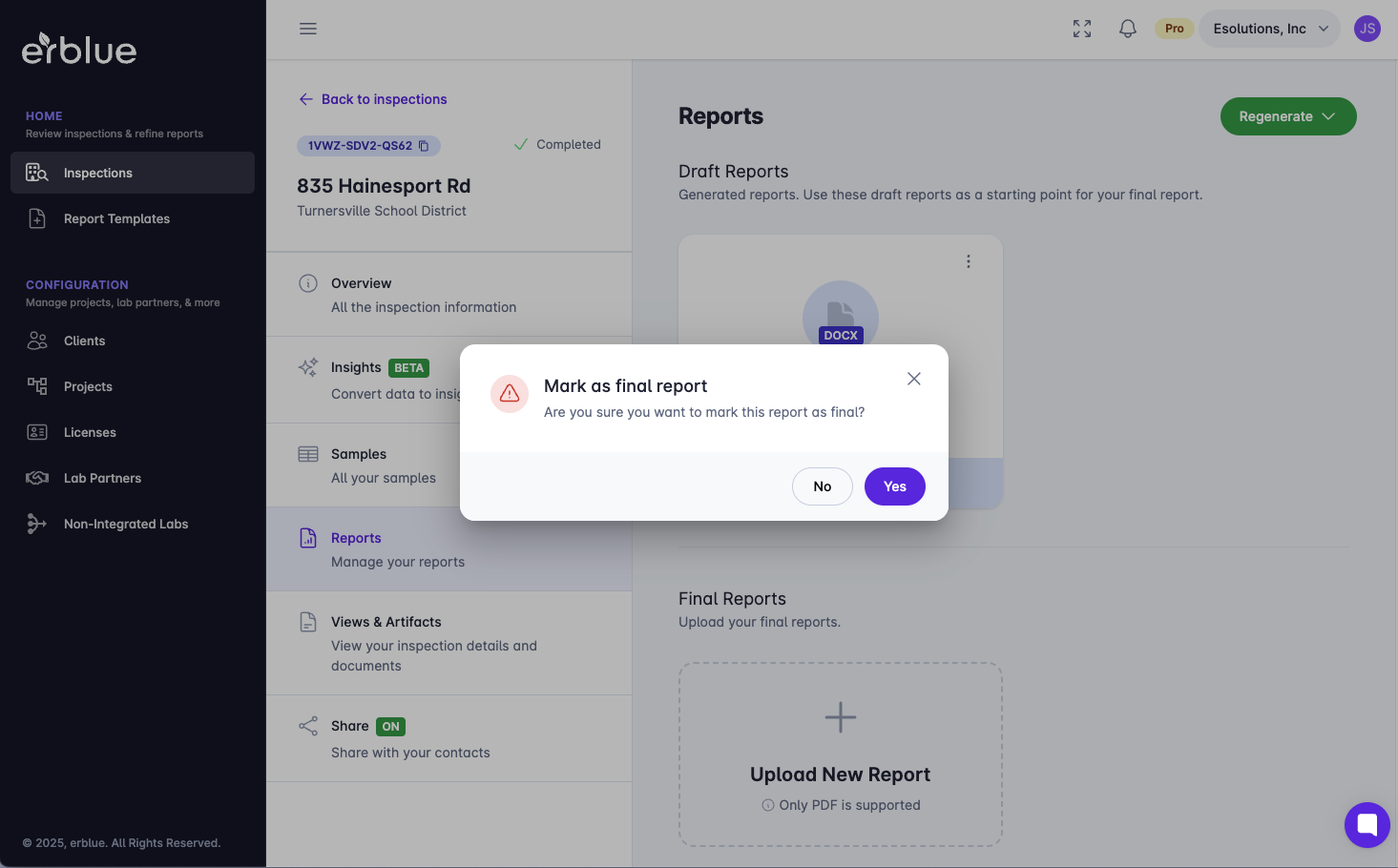
After selecting Mark as Final from the contextual menu, a confirmation dialog will appear.
Once you have uploaded a final report or marked one as a final. It will appear in your Final Reports slots.